Guides
How to Shorten a Google Form Link (and Track Its Responses)
A Google Form link is long, forgettable, and hard to trust at a glance. It wraps awkwardly in a message, breaks in a printed flyer, and tells the person clicking it nothing about where they are going. Shortening that link fixes all three problems — and if you do it the right way, it also tells you how many people actually clicked through to your form.
By Urlzbit · · 9 min read
A Google Form link is long, forgettable, and hard to trust at a glance. It wraps awkwardly in a message, breaks in a printed flyer, and tells the person clicking it nothing about where they are going. Shortening that link fixes all three problems — and if you do it the right way, it also tells you how many people actually clicked through to your form.
This guide covers how to shorten a Google Form link, what Google's own built-in option does and does not do, and how to track clicks on your form link without confusing clicks with responses.
Why Google Form links need shortening
A default Google Form link is a long string of characters that looks like it was generated by a machine, because it was. That causes three practical problems:
- It looks untrustworthy. People hesitate before clicking a long, random-looking address, especially in a message from someone they do not know well.
- It is hard to share. Long links wrap across lines in emails and chats, and they cannot be printed on a poster, a handout, or a business card at all.
- It tells you nothing. A raw form link gives you no record of how many people clicked it, or which channel brought them in.
A short link solves the sharing problem. A short link with analytics solves the measurement problem too.
Get your form link from Google first
Before you shorten anything, you need the form's responder link — the address people use to fill the form in, not the editor address you see while building it.
- Open your form in Google Forms and make sure it is published, so responders can actually open it.
- Copy the responder link from the sharing options. Do not copy the address from your browser's address bar while editing — that is the editor link, and sharing it gives other people access to edit your form.
- Check who can respond before you share widely. If the form is meant for the public, anyone with the link should be able to open it. If it is internal, keep the access restricted.
Once you have the responder link, you have two ways to shorten it.
Google's built-in shorten option
Google Forms offers its own "Shorten URL" checkbox when you copy the responder link. It turns your long form address into a short forms.gle link, and it costs nothing.
That is where its advantages end:
- You cannot choose the ending. The short link is a random string, so it says nothing about your form, your event, or your brand.
- You get no click data. Google does not show you how many people clicked the shortened link, or where they came from.
- You cannot edit it later. If the form moves or you need to point the link somewhere else, you have to share a brand-new link.
- There is no QR code. If you want the form on a printed poster or a handout, you still need a separate QR tool.
Google's built-in option is fine for a quick share with a small group. For anything public, repeated, or printed, a dedicated shortener is the better tool.
Shorten a Google Form link with Urlzbit
Shortening a Google Form link on Urlzbit works the same way as shortening any other link, and it takes under a minute:
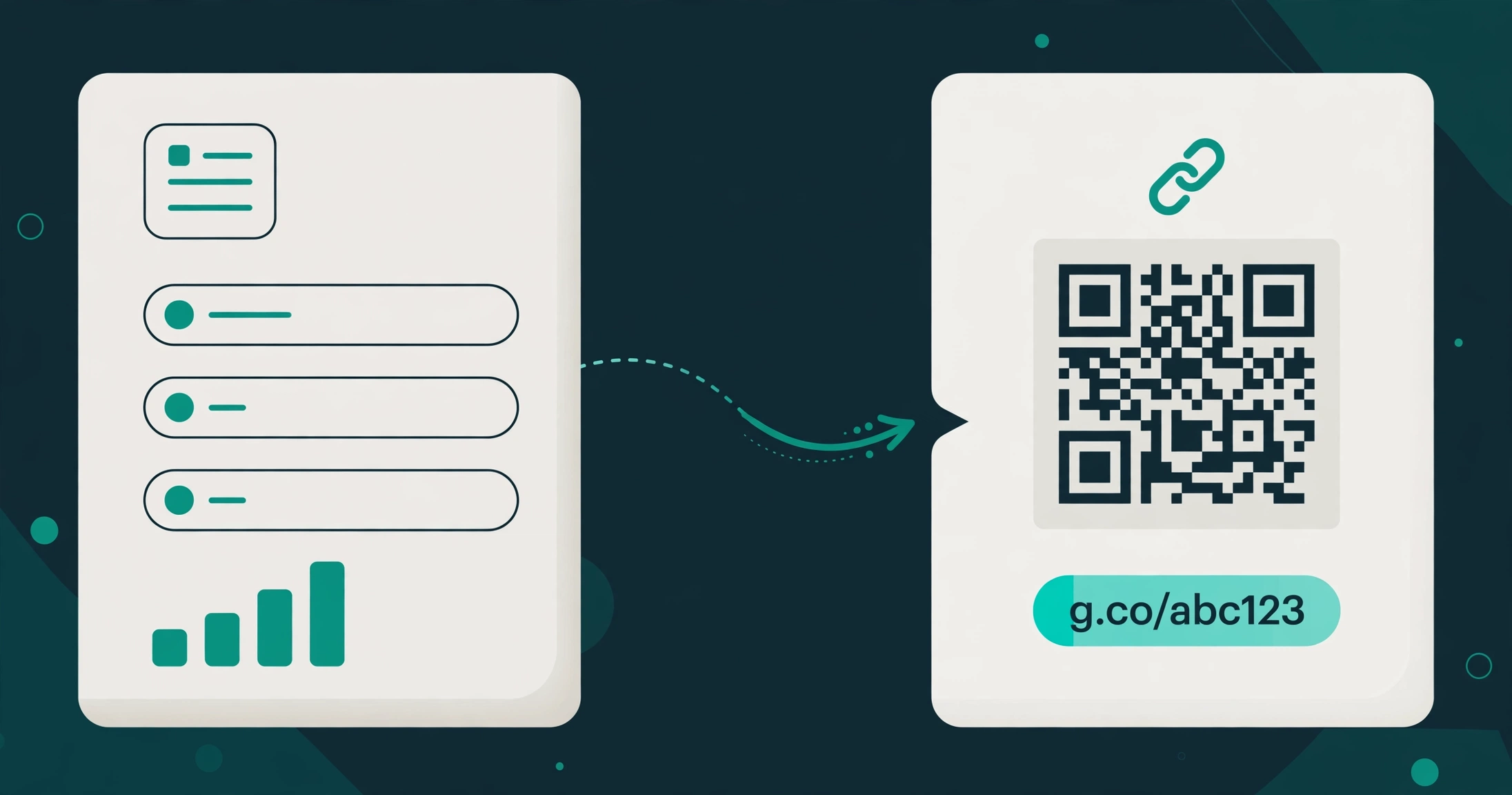
- Paste the responder link into Urlzbit and create a short link from it.
- Pick a custom ending that describes the form, such as a survey name, an event name, or a campaign name. A readable ending is easier to trust and easier to remember than a random string.
- Use the QR code Urlzbit generates for the link if the form will appear in print — on a poster, a flyer, a handout, or a sign-up sheet at an event.
- Share the short link anywhere the long one would have gone: email, WhatsApp, social posts, a website button, or a printed page.
On the free plan you get 100 saved links and 10,000 clicks per calendar month, which covers most single-form campaigns comfortably. If you run many forms or expect heavy traffic, Urlzbit Pro at $9 per 30 days removes the click cap and adds bulk tools, and there is no auto-renewal — you renew only when you want to.
Track responses with click analytics — honestly
This is where most guides get sloppy, so here is the honest version: clicks are not responses. A click means someone opened your form. A response means someone submitted it. The two numbers will never match, because some people open a form and leave without submitting, and some people submit after clicking more than once.
What Urlzbit's per-link analytics actually give you:
- How many times the link was clicked, so you know which channel is sending traffic — one link per channel means one clean count per channel.
- Country and device breakdowns, so you can see whether your audience is mostly on phones or desktops, and where they are located.
- A per-link record you can check while the form is live, instead of waiting until the end to guess what worked.
What it does not give you, and what no shortener can give you:
- Who responded. Click analytics never identify individual respondents. If you need to know who submitted, that information comes from the form itself — for example, by asking for an email address in the form, if your form is set up that way.
- Response counts. Your response totals live in the form's Responses tab in Google Forms, where you can see summaries, individual submissions, and a linked spreadsheet. Compare the click count with the response count to work out your completion rate: responses divided by clicks tells you how much of your traffic actually finished the form.
The practical setup is simple: create one short link per placement. One link for the email, one for the WhatsApp group, one for the poster, one for the social post. Each link keeps its own click count, so you can see which placement earned its effort and which one was ignored. If you want the full method, see How to Track QR Code Scans: A Practical Guide for the same one-link-per-placement approach applied to print.
Editing the destination after sharing
Forms change. A deadline moves, a question gets fixed, or you replace an old form with a new version — and the link is already out in the world.
If you shared Google's built-in short link or the raw form address, you are stuck: the old link points to the old form, and your only option is to share a new link everywhere and hope people use it.
If you shared a Urlzbit short link, you can edit the destination the short link points to, and every copy of the short link already shared — in emails, chats, and print — starts sending people to the new destination. The short link itself never changes, so nothing needs to be re-shared. This is also what makes the QR code on a printed poster safe to use: the printed code stays valid even when the form behind it changes.
When shortening is not enough
Shortening a form link is a distribution fix, not a form fix. A few things a short link cannot do for you:
- It cannot fix a form nobody finishes. If your completion rate is low, the problem is usually the form itself — too many questions, unclear wording, or a form that asks for information people do not want to give.
- It cannot change who can respond. Access control lives in Google Forms, not in the short link. Anyone with your short link can reach the form if the form itself is open to anyone with the link.
- It cannot identify respondents. As above, respondent identity comes from the form's own settings, not from click data.
If you are setting up the whole sharing workflow for the first time, Create, Share & Track Short Links walks through the full process from creating a link to reading its analytics.
FAQ
How do I shorten a Google Forms link for free?
Copy the form's responder link from Google Forms, paste it into a free shortener, and pick a custom ending. On Urlzbit's free plan you can save up to 100 links with 10,000 clicks per month, and every link gets its own QR code and click analytics.
Can I shorten a Google Form link without an account?
Google's own "Shorten URL" option gives you a short forms.gle link with no account beyond the Google account you already use for Forms. But that link has a random ending, no analytics, no QR code, and no way to edit the destination later. A free Urlzbit account adds all four.
Does shortening a Google Form link change the form?
No. Shortening only changes the address people use to reach the form. The form itself, its questions, and its responses are untouched. The short link is simply a redirect to the same form.
Can I see who clicked my form link?
No — and be wary of any tool that claims otherwise. Click analytics show how many clicks a link received and broad breakdowns like country and device. They never identify individual clickers. Respondent identity only exists inside Google Forms, and only if the form collects it.
Can I change where a shortened form link goes after sharing it?
Yes, if you shortened it with a tool that supports editing the destination, like Urlzbit. The short link stays the same and starts pointing at the new destination. Google's built-in short link cannot be edited this way.
Should I use a different short link for each place I share the form?
Yes. One link per channel — email, WhatsApp, poster, social post — gives each placement its own click count, so you can compare channels honestly instead of guessing which one worked.