QR codes
Can You Change a QR Code Destination After Printing?
Find out when a printed QR code can be updated, what to do with a static code, and how to keep a Urlzbit QR code useful when your destination changes.
By Urlzbit · · 4 min read
Updated October 21, 2026You can change a printed QR code's destination when you control the URL or redirect encoded inside it. You cannot rewrite the black-and-white pattern already printed on paper. The useful question is therefore: which address is encoded, and who controls what happens when it opens?
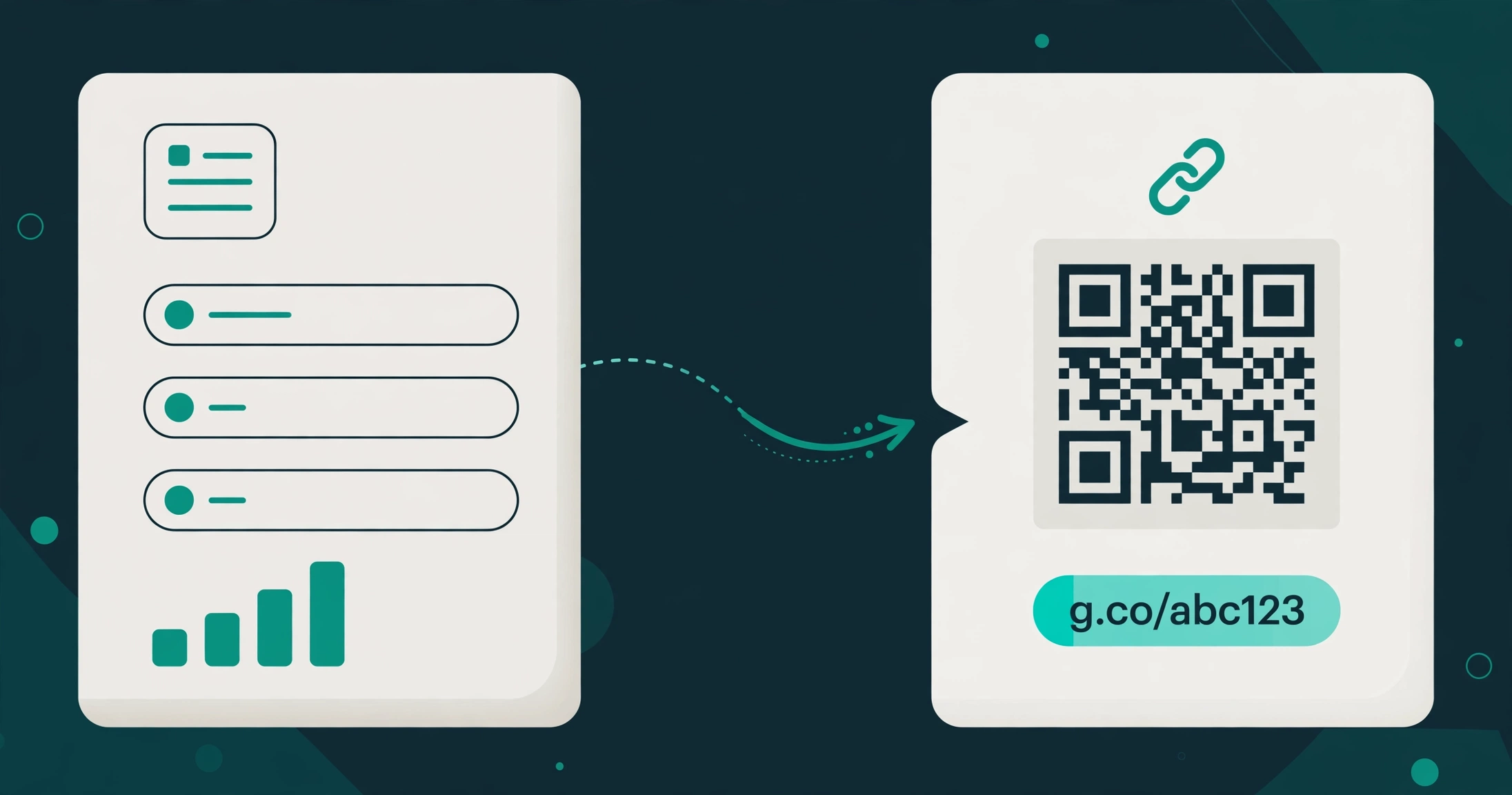
A QR code downloaded for a managed Urlzbit link points to that managed short address. Updating the link's destination can change where future scans go while the printed QR image stays the same. This does not let you take over an unrelated QR code created by another service.
First, identify the address inside the QR code
Use a scanner that lets you inspect the encoded address before opening it. The final address in a browser may be different because a redirect has already happened. Your original QR export or provider dashboard can also help identify the starting URL.
There are three common cases:
- A managed short link you control: edit its destination in that account.
- A URL on your own website: keep that path available and update its page or redirect through your website administration.
- A destination or provider URL you do not control: recover the relevant account, ask its owner for help, or replace the printed code.
A static QR containing a URL on your own domain may still be recoverable by changing what that URL does. A static QR containing fixed contact details or Wi-Fi settings cannot be remotely rewritten through a short-link dashboard.
Update a QR code created from a Urlzbit link
Sign in to Urlzbit and open My links. Find the managed link used for the QR code and choose Edit link. Replace Destination URL with the complete new address, then save.
Keep the existing link record and managed address. Creating a new short link does not update old printed codes. Deleting the original link breaks the route those codes use.
For a simple campaign link without other routing rules, future scans should now open the new destination. If country, device, language, weighted or administrator global routing is active, those rules may choose a different destination. Review them when you change the default page. For country rules specifically, see how to redirect a link based on country.
Test the printed item, not just the new page
Imagine a workshop poster that originally pointed to an early registration form. Registration has closed, and you want the same poster to show the event agenda instead. Update the original managed link, then scan a physical poster to check the entire route.
Check it on more than one phone if possible. Confirm that:
- The encoded managed address is still the original one.
- The destination opens correctly on a mobile screen.
- The link is active and has not expired or reached a click limit.
- Any password or regional rule behaves as intended.
Keep the original QR artwork in your campaign folder. You do not need to generate a new image merely because you edited the destination behind the same address.
What if the existing code cannot be updated?
If you do not control the encoded address, Urlzbit cannot change it for you. Recovering the original provider account may be enough. If that is impossible, you may need a new print run or a clearly explained replacement label.
For your next print project, create a managed link first, generate its QR code from More options → QR code, and test it before printing. Keep access to the account and make sure the service and domain remain available for the lifetime of the material.
Separate scan activity from other clicks
If you share the same managed address in a QR code and an email, its click totals combine requests from both uses. Create separate managed links for separate print placements when you need to compare them. Recorded requests can include automated activity; they are not a guaranteed count of individual people scanning a poster.
Read the Urlzbit getting-started guide for the full link and QR workflow. Choose a stable managed address before printing, and test the route again whenever you change it.