Guides
How to Password-Protect a Link (Free, in About a Minute)
Add a password prompt to a managed short link, test the visitor experience and understand why the destination website still needs its own access controls.
By Urlzbit · · 8 min read
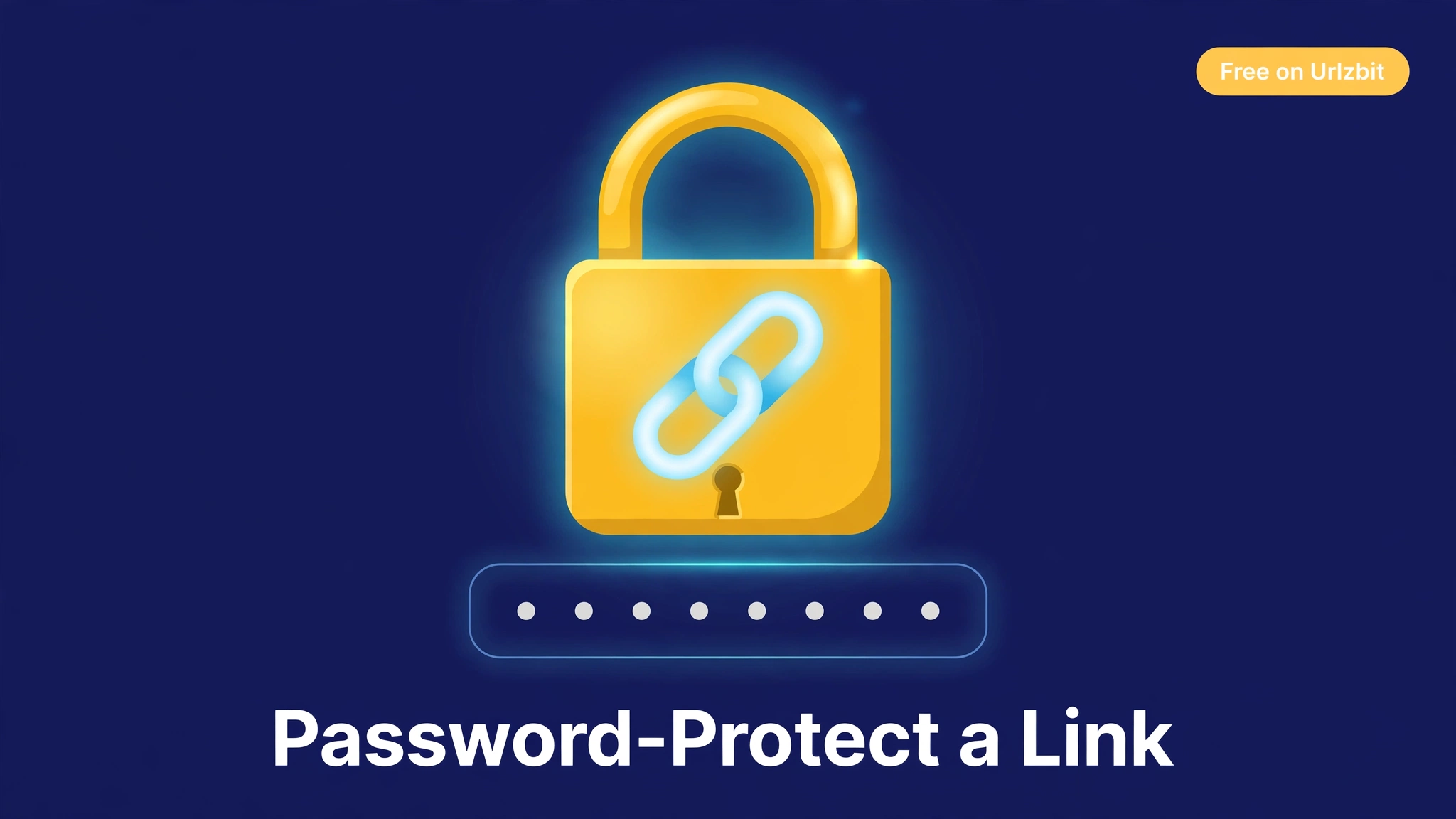
Some links should not be open to everyone who gets hold of them. A client deliverable, an unreleased product page, an event registration form, files for your team — if the link leaks into the wrong chat or inbox, anyone can open it. A password-protected link fixes that simply: the visitor sees a password prompt first, and only someone who knows the password reaches the destination.
This guide shows three ways to do it, what each one actually protects, and what the feature costs on the major link tools. On Urlzbit, password protection is included in the free plan, so the first method costs nothing.
What a password-protected link actually does (and doesn't)
A password-protected link is a short link with a gate in front of it. When someone opens it, they land on a small page asking for a password. Type the right one and the link continues to the real destination. Type the wrong one — or close the page — and nothing opens.
Be clear about what this is: it is access control, not encryption. The page at the other end is not scrambled or hidden inside the link; it is simply not shown until the password checks out. That is exactly the right level of protection for everyday sharing — keeping a link out of casual circulation. It is not the right tool for highly sensitive documents, medical or legal material, or anything with compliance rules; those belong in systems built for that purpose, with per-user accounts and audit trails.
One more practical point: a password only stays useful if you send it through a different channel than the link. Link in the email, password in the chat message — not both in the same thread.
Method 1: Use a URL shortener with a password option (free on Urlzbit)
A link shortener is the easiest route because the password sits on a normal, manageable link — you can still edit the destination later, see click counts, and share it as a short URL or a QR code.
On Urlzbit it works like this:
- Create a free account: Sign up free — the free plan holds 100 saved links and includes password protection, custom link endings, and a QR code for every link.
- Paste your long URL: add the destination you want to protect.
- Set a custom ending (optional): something recognisable, like your project name.
- Add a password: in the link's options, set the password visitors must enter.
- Share the short link: send the password separately, through a different app or message.
Anyone opening the link now meets the password prompt first. If you later change the destination — a new version of the document, a corrected page — the short link and its password stay the same, and the QR code follows the edit. You can compare what else the free plan includes in the guide to the Bitly alternative, where several of these everyday features sit behind paid plans.
Method 2: Encryption tools like Link Lock
There is a second, quite different approach: tools that encrypt the destination URL itself with your password. The best-known is Link Lock, a small open-source project that runs entirely in the browser — it takes your link and password and produces a special locked link. Whoever opens it enters the password, the link decrypts in their browser, and they continue.
The honest trade-offs:
- The protection model is stronger: the destination is genuinely encrypted inside the link, not just gated by a server.
- The links get long and fragile: the encrypted address is carried inside the link itself, so locked links are long strings, not short branded URLs.
- There is no management: no dashboard, no click analytics, no editing the destination afterwards, and no QR code workflow. Change the destination and you mint a brand-new link.
For a one-off secret shared once, Link Lock is a neat tool. For links you manage over time, a shortener is the better fit.
Method 3: File hosts (Drive, Dropbox, Box) — workable, with limits
If the thing you are sharing is a file, the file host itself may seem like the obvious place for the password. In practice:
- Google Drive: sharing links have no password option at all. Your choices are "anyone with the link" (no gate) or restricting the file to named people, which means managing access person by person.
- Dropbox: passwords on shared links exist, but they are a paid-plan feature.
- Box: link passwords are likewise reserved for paid tiers.
If the file already lives in one of these services and you are paying for it anyway, use the built-in option. If not, putting a short password-protected link in front of the file's share URL (Method 1) gives you the gate without upgrading a storage plan — and the same trick works for web pages, forms, and anything else with a URL, not just files.
What password protection costs elsewhere
This is where the plans differ sharply. Password protection sounds basic, yet most major shorteners treat it as a paid upgrade:
- Urlzbit: included in the free plan; also in Pro ($9 per 30 days) and Business ($29 per 30 days).
- Rebrandly: password-protected links start from the Professional paid tier, not the free plan.
- Short.io: link passwords sit in its Pro tier; the free plan does not include them.
- Cuttly: password protection starts at the Single plan, $25/month.
- Bitly: its pricing page lists no password-protection feature on any self-serve plan (checked October 2026).
See Urlzbit pricing: Plans and pricing for the full feature list per tier.
If a password gate is the one feature you need, paying $25 a month for it is hard to justify when a free plan elsewhere includes it.
When NOT to password-protect a link
A shared password is a shared secret, and it has real limits:
- Sensitive or regulated content: health, legal, financial, or personal documents deserve per-user access control, not one password for everyone.
- Large public audiences: if hundreds of people get the password, it will circulate — at that point it is decoration, not protection.
- Anything where you must know who opened it: a password gate tells you a link was opened, not by whom. Use accounts, not passwords, when identity matters.
- As your only copy of the password: if you forget it, the link is locked for you too — store it where you keep the rest of the project's details.
FAQ
How can I encrypt a URL link? With an encryption tool such as Link Lock, the destination is encrypted with your password and decrypted in the visitor's browser. A shortener's password gate is different — it checks the password on the server before redirecting. Both stop casual access; the shortener version adds editing, analytics, and short links.
How do I make a link private? The practical options are: put a password on it (Method 1 above), restrict the destination itself to named users (as in Google Drive's people-specific sharing), or don't share the raw link at all — send people to a page that asks them to sign in.
How do I protect a URL I already shared? If the link came from a shortener, you can usually still add a password to it afterwards, and the same short link keeps working — the gate appears for the next visitor. If you shared the raw destination URL, you cannot retroactively protect that copy; move the content or change its address, then share a protected short link instead.
Can I password-protect a Google Drive link? Not with a Drive setting — Drive has no link passwords. The workaround is to copy the Drive share link, shorten it with a password on a tool like Urlzbit, and share the short link. Open the short link, enter the password, and you arrive at the same Drive file.
Is a password-protected link safe? It is safe for its job: keeping a link from being opened by people who merely stumble on it or receive it by mistake. It is not a substitute for proper access control on sensitive material — anyone who has both the link and the password can pass both on.
The short version
For everyday sharing — client work, drafts, event pages, team resources — a password on the link is the simplest protection there is, and it takes about a minute to set up. Use an encryption tool for one-off secrets, your file host's paid option if you already have it, and a shortener when you want the gate on a link you can keep managing. On Urlzbit the password option is part of the free plan, so you can try it on your next link and see whether anyone without the password gets anywhere. They won't.
Try it: Create a free Urlzbit account and password-protect your first link.